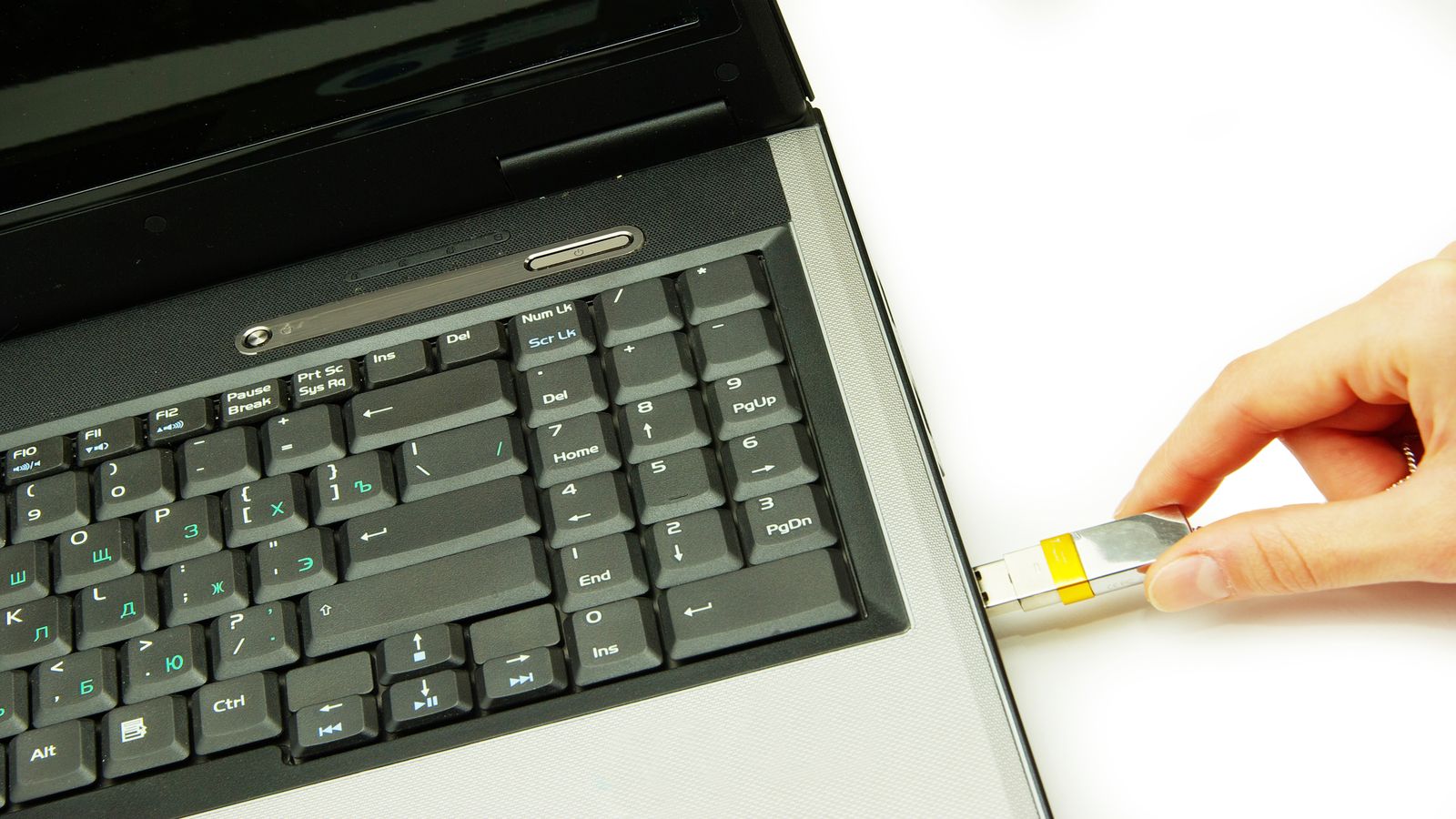
A download page for PC tools should be one of the simplest things on the internet, and it almost never is. After more than a decade of preparing installer media, testing recovery environments, and setting up lightweight software on machines that have no patience for bloated bundles, I have strong opinions about what belongs on a page like this: clear descriptions, honest system requirements, and nothing that tries to sneak extra software onto your machine during the install process. That is the standard here. Every item on this page has been tested on the same hardware used in the guides and benchmarks sections, and the notes reflect what I actually ran into during setup - not what the vendor's readme claims will happen.
Below you will find installer preparation notes for the Presto boot environment, a curated lightweight software pack for low-resource machines, system requirement references, and a pre-download checklist that covers the steps most people skip and then regret. If your machine has specific driver needs or BIOS quirks, the support section covers those in detail.
The most common download-related failure I see is not a corrupt file or a bad USB stick. It is someone downloading an installer, writing it to a drive, and then discovering that their machine will not boot from it because Secure Boot is enabled, the partition table format is wrong, or the BIOS boot priority was never changed. Those problems have nothing to do with the download itself, but they waste an hour every time. Running through this checklist before you start saves that hour.
Pre-download preparation checklist
- Confirm your machine's BIOS type - legacy BIOS or UEFI. This determines which installer format you need. Most machines from 2012 onward use UEFI, but some ship with legacy mode enabled by default.
- Check Secure Boot status. If enabled, some Linux installers will not boot without either disabling it or using a signed bootloader. The system requirements page lists which configurations need Secure Boot off.
- Verify your USB drive is at least 4 GB and works reliably. Old or cheap flash drives with failing cells cause write errors that look like corrupted ISOs. Test with a different stick before assuming the download is bad.
- Know your storage interface - SATA, mSATA, M.2 SATA, or M.2 NVMe. If you are planning a drive swap alongside the OS install, the installer needs to see the new drive. AHCI mode must be enabled in BIOS for most SATA SSDs.
- Back up anything you need from the current system. A fresh install overwrites the target partition entirely. If you are dual-booting, confirm which partition the installer will target before proceeding.
- Have a second device available - phone, tablet, another computer. If something goes wrong during install, you will need a way to look up error messages or download a recovery image without the machine you are working on.
If any of those items are unfamiliar, the system requirements page has the specifics for each hardware generation, and the USB boot troubleshooting guide walks through the BIOS settings step by step.
Each item includes tested notes and known compatibility caveats
Presto Installer Notes
Detailed preparation and installation notes for the Presto boot environment. Covers ISO verification, USB writing tools (Rufus, Etcher, dd), partition layout expectations, and the specific BIOS settings that need to be correct before the installer will boot. Includes a troubleshooting appendix for the five most common failure points during first boot.
Tested on machines with legacy BIOS, UEFI with Secure Boot disabled, and UEFI with Secure Boot enabled using a signed shim. Notes indicate which path applies to your hardware.
View installer notesLightweight Software Pack
A curated set of lightweight applications tested on machines with 2 to 4 GB of RAM. Includes recommendations for a browser (Falkon, Midori, or a trimmed Firefox profile), a text editor, a file manager, a PDF viewer, and a media player - each chosen for low memory usage and fast startup on older hardware. No bundles, no installers that add toolbars, no software that phones home on every launch.
Each application includes the version tested, the RAM footprint observed during testing, and any known issues on specific distributions. Where an application is available in a distro's default repository, that install method is recommended over manual downloads.
View software packUpdated download resources for 2026 with refreshed software picks and compatibility notes for current OS versions.
Lightweight Software Pack 2026 Edition: What We Include, What We Exclude, and Why
The 2026 edition of the PrestoMyPC lightweight software pack. Documents every application included and excluded, with specific reasons based on RAM usage, CPU impact, and compatibility with older hardware. Covers browsers, office suites, PDF tools, media players, image editors, security software, and utilities. Compares 2026 picks against the previous edition and explains what changed. Includes install notes for both Windows and Linux and specific configuration tips for 4GB machines.
View detailsThis is not a mirror site and it is not a software catalogue. I do not host ISO files, redistributed binaries, or anything that has a licence prohibiting third-party distribution. What this page provides is tested notes, configuration references, and direct links to official sources where the actual files live. If a tool's upstream download page changes or goes offline, I update the notes with the current location or remove the entry rather than hosting a stale copy.
You will also not find countdown timers, multi-step download buttons, or prompts to install a download manager. If the preparation notes reference a file, the path to that file is one click from the official source. That is a deliberate decision - not a design oversight.
Before committing to an installer or software pack, check that your hardware meets the baseline. The system requirements page covers minimum and recommended specs for each configuration tested on this site, including edge cases like machines with only 1 GB of RAM or eMMC storage instead of a traditional drive.
Every installer note includes a SHA-256 checksum. Verifying the checksum is not paranoia - it is a practical safeguard against incomplete downloads and corrupted writes. A USB stick written from a truncated ISO will either fail to boot entirely or boot into a broken state that looks like a hardware problem. Verifying the checksum before writing to USB takes ten seconds and eliminates that possibility.
Get-FileHash filename.iso -Algorithm SHA256. On Linux, use sha256sum filename.iso. Compare the output to the checksum listed in the installer notes. If they do not match, re-download the file before proceeding.Every note and recommendation on this page is maintained from direct testing. When upstream tools release new versions, I retest on the bench hardware before updating the notes. When an application's resource usage increases past the point where it runs well on 2 GB machines, it gets flagged or replaced with an alternative that still fits. The goal is a reliable starting point for every install - not a catalogue of everything that exists, but a short list of what actually works on the hardware these guides are written for.